Making it easier for clients to manage their cover in myTAL
Digital Enhancements -
We're continuing to enhance myTAL to make it easier for clients to manage their cover online.
From today, eligible clients will be able to submit selected policy change requests through myTAL, giving them greater flexibility to manage their cover when their circumstances change.
The enhancement provides a simpler, self-service experience for clients while keeping advisers informed through existing servicing channels. Clients can submit eligible requests online, receive information about the impact of their changes and track progress through myTAL.
What clients can do in myTAL
Eligible clients can use myTAL to request the following policy changes:
- Reduce their Sum Insured
- Decline CPI for either 12 months, or permanently
Clients will be guided through each step of the process, helping them understand the impact of their requested changes before submitting their request.

Important information for advisers
- Clients can submit eligible policy changes directly through myTAL.
- Before proceeding, they'll be shown information about how the change may affect their cover and premiums.
- Submitted requests can be monitored through existing servicing channels.
Who can use this feature?
This enhancement is available on eligible Accelerated Protection (AP) and Protection Plans (PP) policies.
Accelerated Protection (AP)
Available for AP policies issued under a PDS dated between 10 August 2009 – 12 December 2025, excluding:
- Go Protect
- TAL Lifetime Protection
- Qantas Life Insurance and Qantas Assure Life Protect
- Homeowner Protection
Jointly owned and company-owned policies are not eligible.
Protection Plans (PP)
Available for eligible policies issued from 28 April 2006 onwards. The following ownership structures are not eligible:
- Company-owned policies
- SMSF-owned policies
- Joint-owned policies
What this means for you
This enhancement gives clients greater control over managing their cover while helping to streamline simple policy servicing requests.
As an adviser, you'll benefit from:
- A more streamlined servicing experience for eligible policy changes.
- Greater transparency for clients, with clear explanations throughout the journey.
- Visibility of submitted requests through your existing Service Requests dashboard in IFM.
- A digital experience that helps clients understand the impact of requested changes before proceeding.
Importantly, this enhancement is designed to support clients who want to manage eligible policy changes online while maintaining clear communication throughout the process.
Client and adviser experience walkthrough
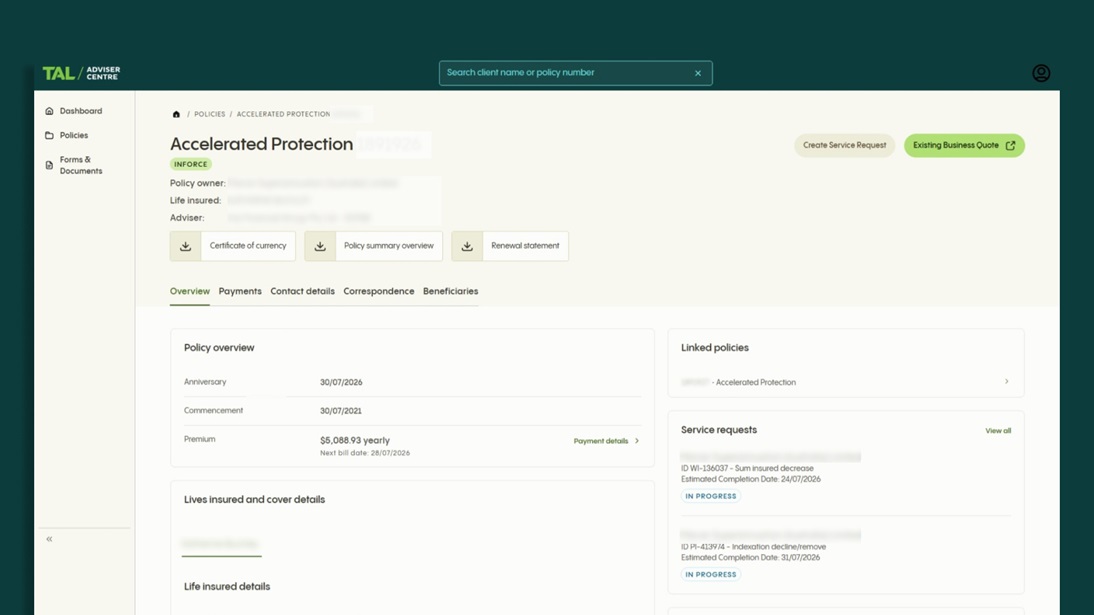
The screenshots below show how clients can request eligible policy changes through myTAL and how those requests will appear in InForce Management (IFM), helping you stay informed as they progress.
Need help?
Contact your local TAL sales team or Adviser Solutions on 1300 286 937 (Monday to Friday 8.30am–7pm AEST).
Client and adviser experience walkthrough
The client experience in myTAL
Start a request
Step 1: Select Modify Policy
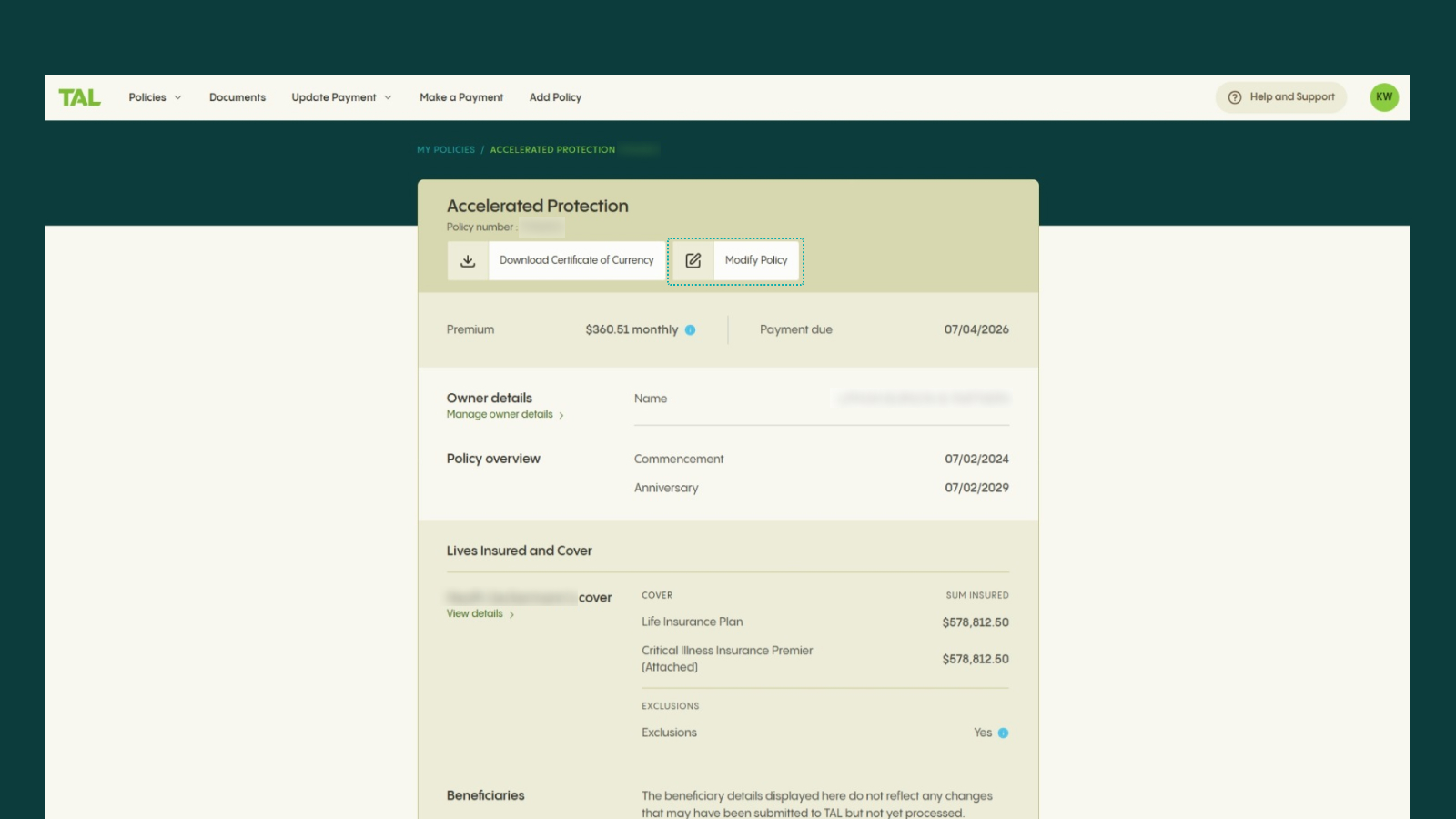
Clients start by selecting Modify Policy from their policy dashboard.
Step 2: Review important information
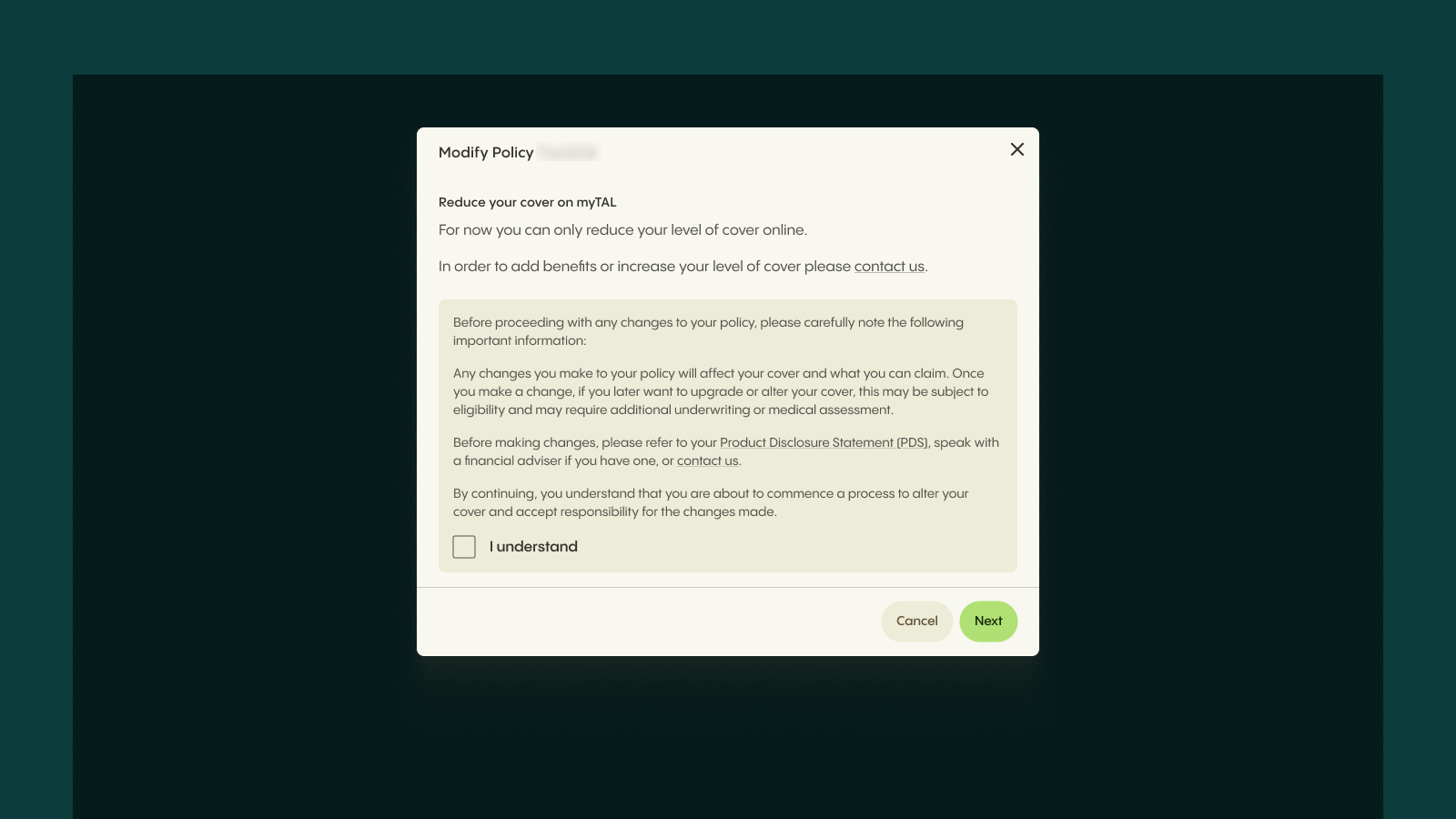
Before proceeding, clients are provided with information about the implications of changing their cover.
Review and submit
Step 3: Choose a policy change
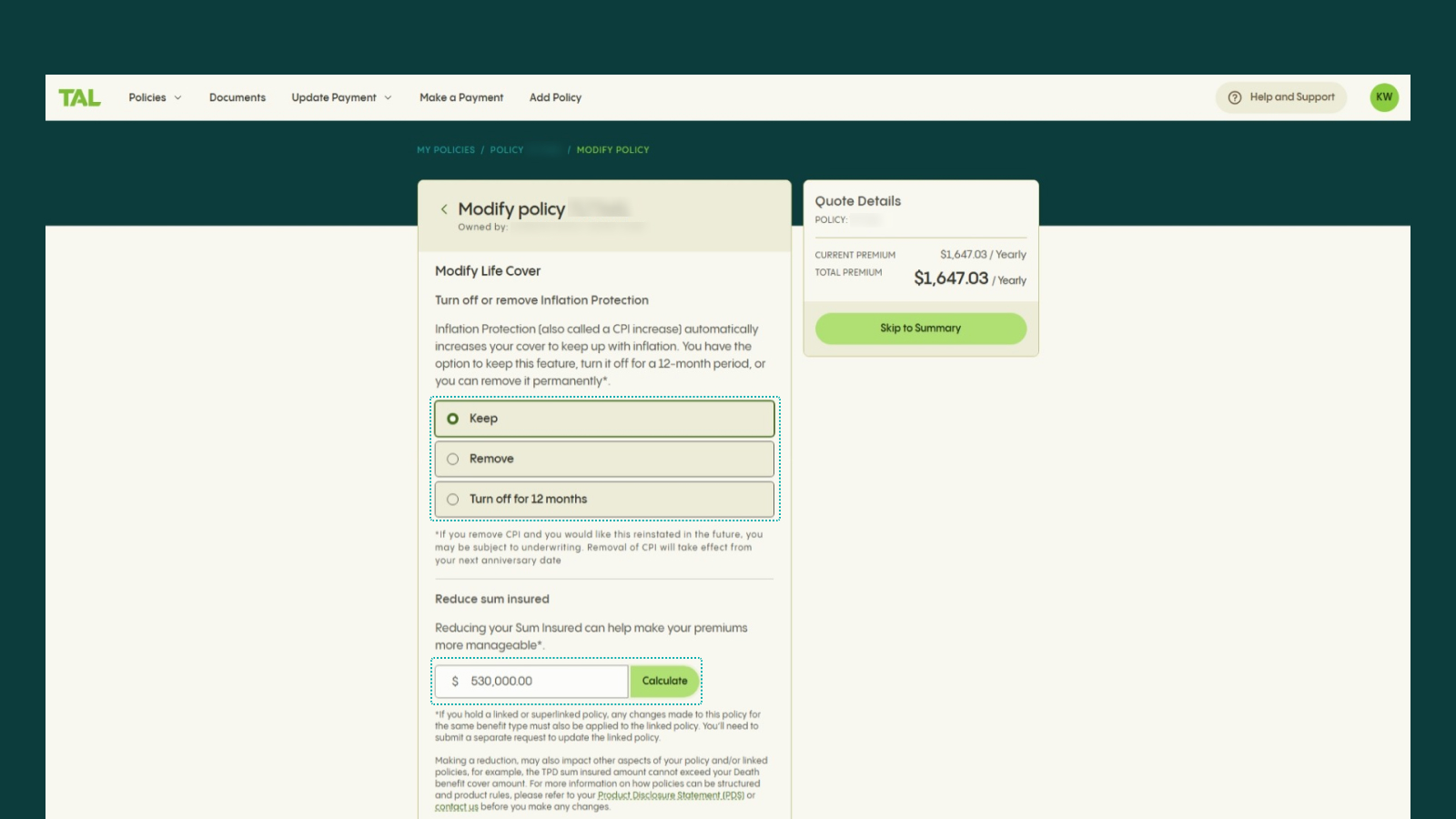
Clients can choose to remove or defer CPI and choose to reduce their Sum Insured.
Step 4: Review and submit
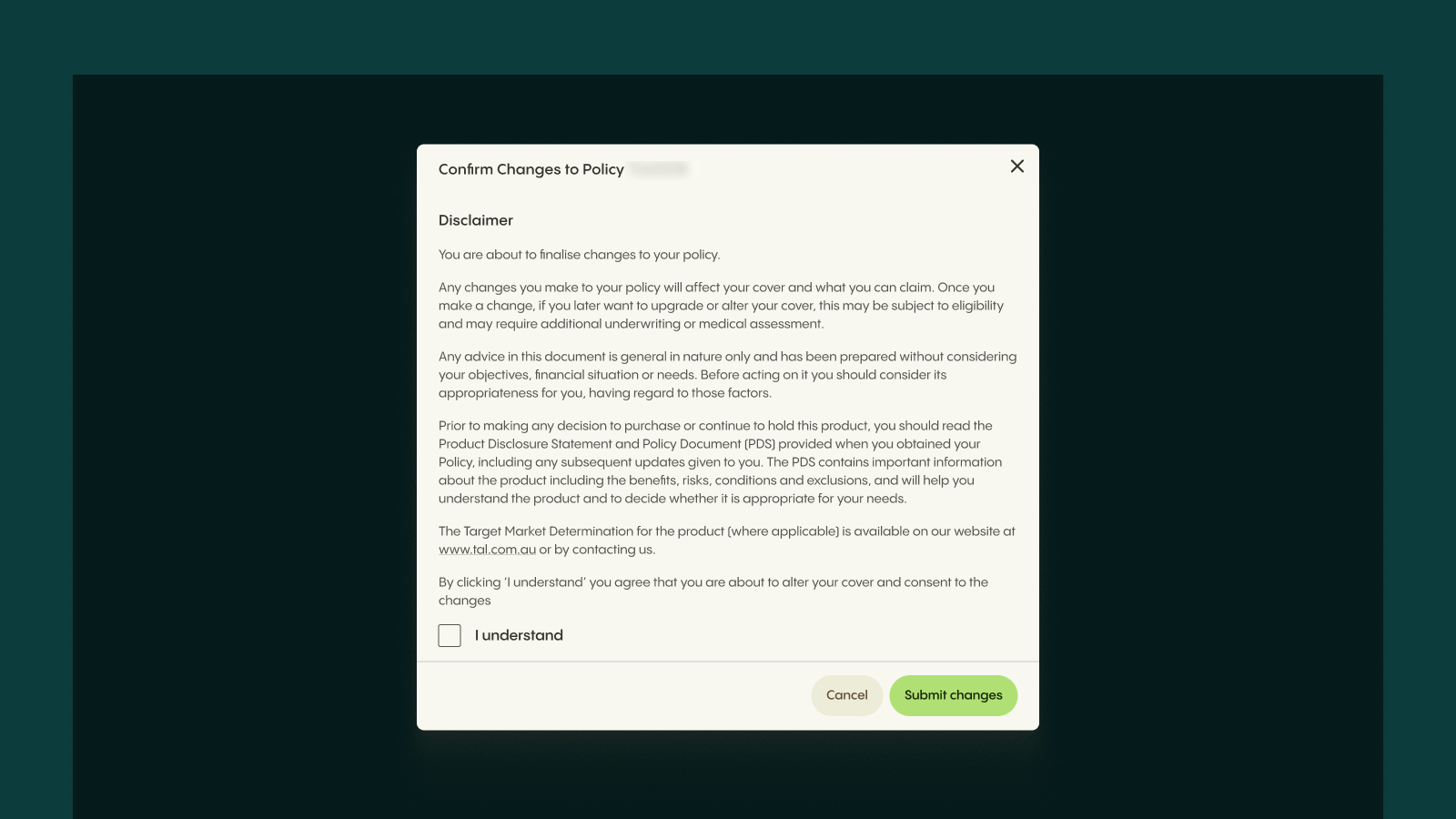
Once they've selected their changes, they review the details and provide consent.
Track progress
Step 5: Receive confirmation
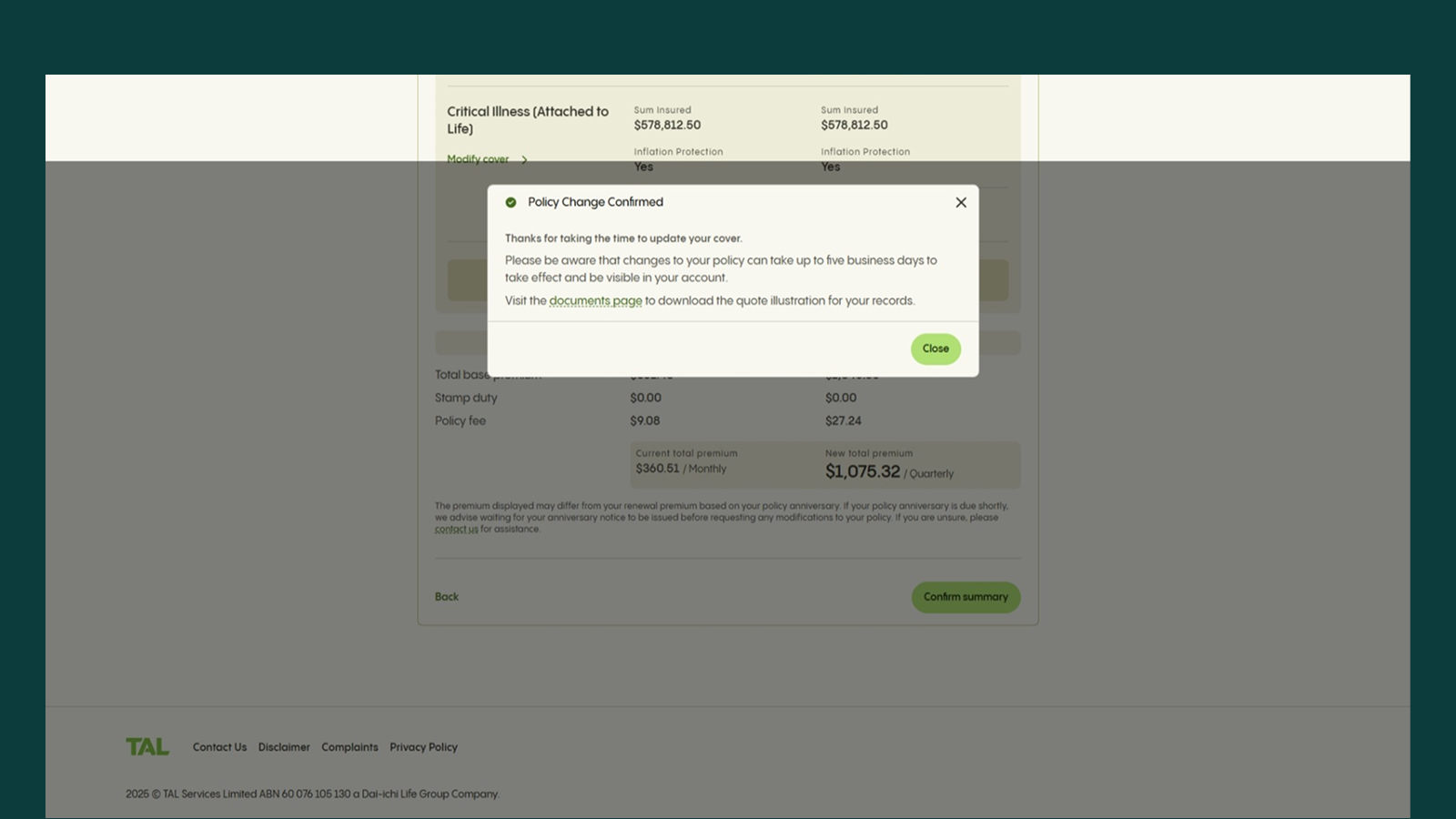
The client receives confirmation that their request has been submitted.
Step 6: Download quote illustration
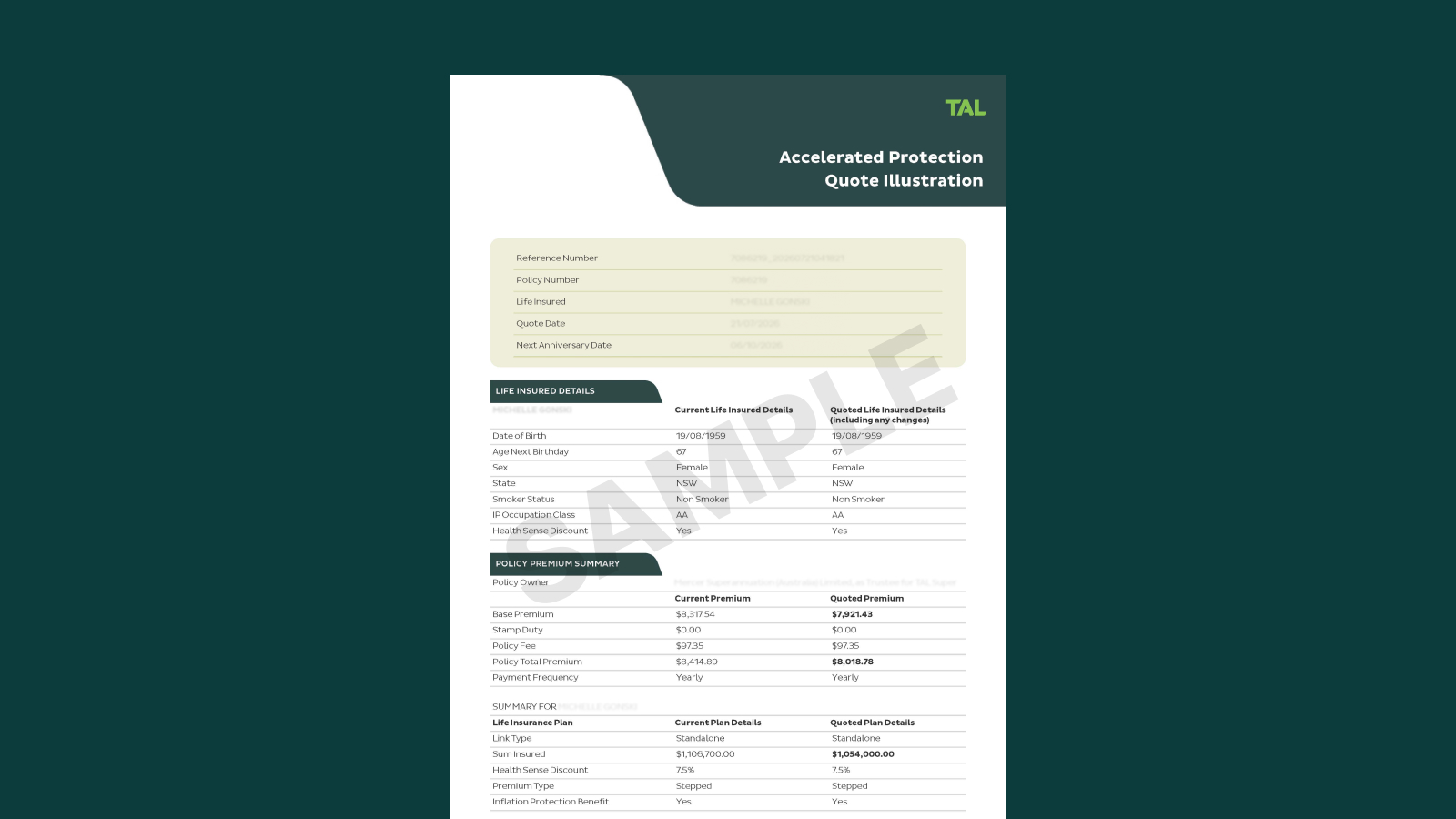
A quote illustration is automatically generated and downloaded.
Step 7: Track progress
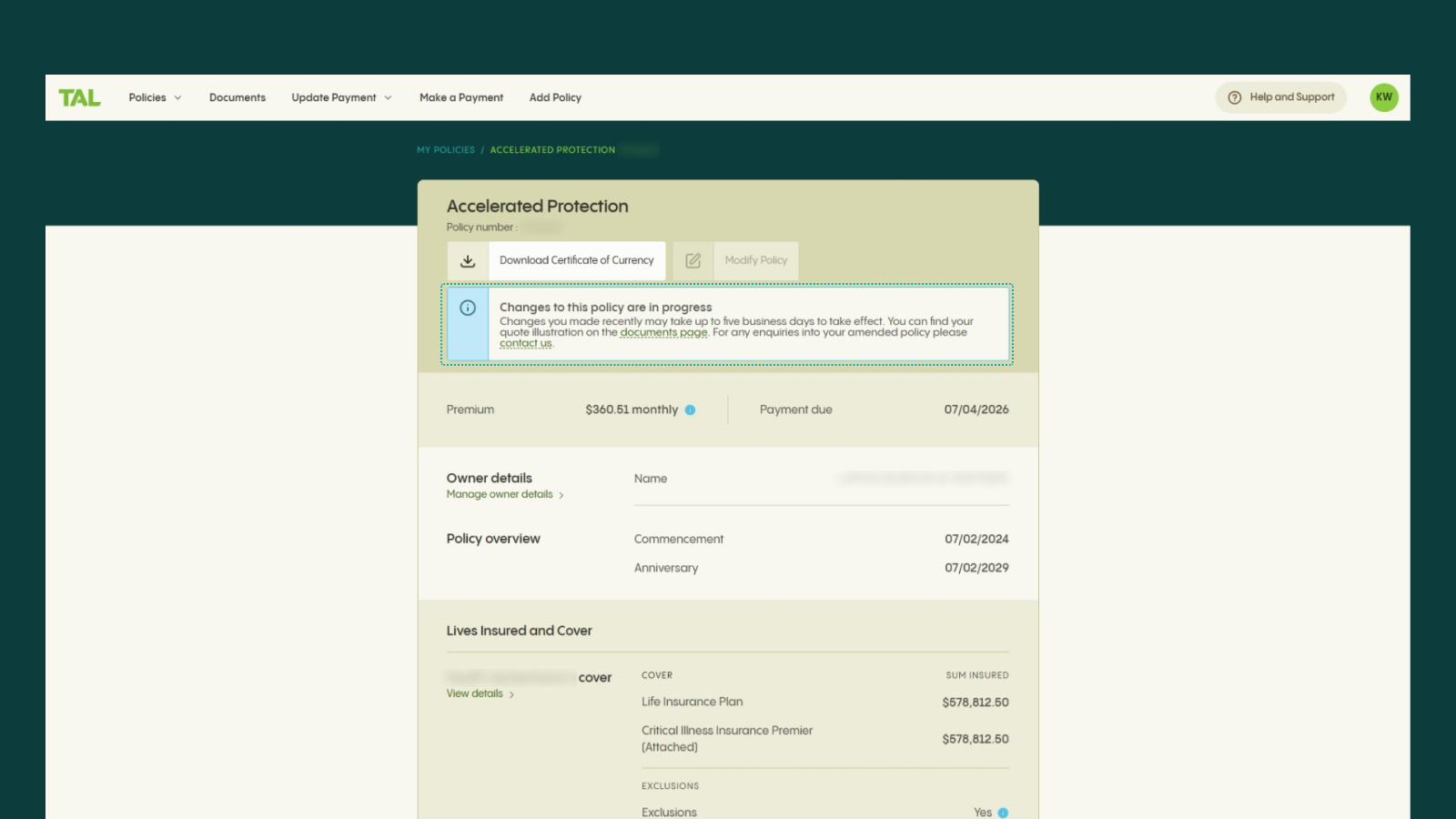
The policy dashboard displays an alert advising that a change request is in progress.
The adviser experience in Inforce Management (IFM)
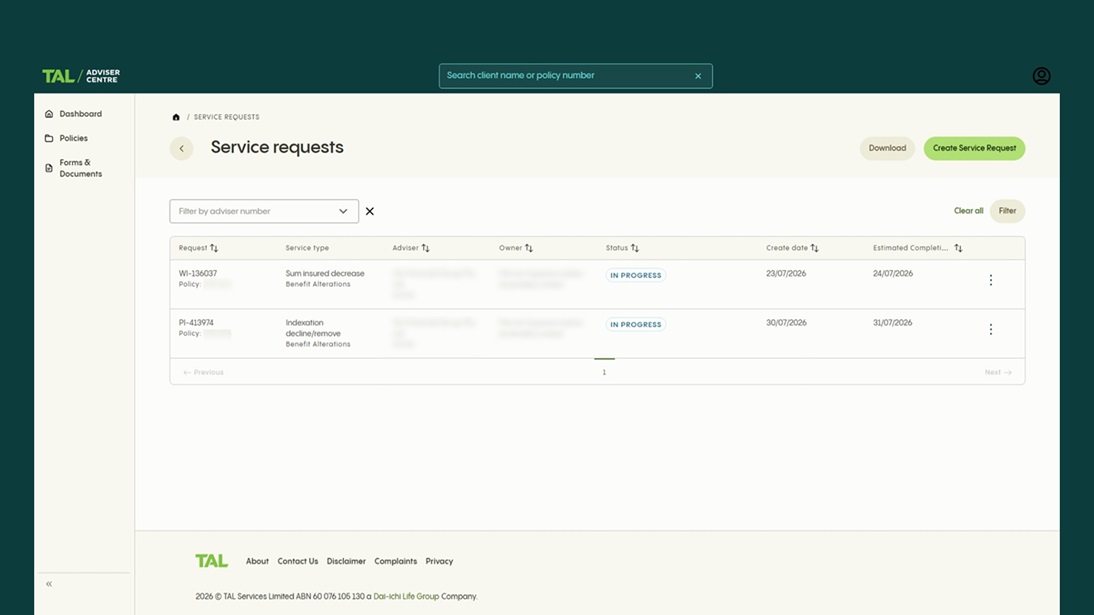
Service Requests dashboard
When a client submits an eligible policy change request through myTAL, you'll be able to view the request in your Service Requests dashboard, where it will be identified as a Web Interaction (WI). This gives you visibility of client-submitted requests and allows you to monitor their progress as they move through the assessment process.
Client dashboard
You'll also see the request recorded on your client's profile, including within the Service Requests section. Depending on the change selected, requests will be categorised as:
- Indexation decline/remove
- Sum insured decrease